
Ledger Assist is a feature in Smile Advantage that helps you track payments and ensure they are recorded in your practice management software.
Here’s how to use Ledger Assist:
- Go to the Transactions screen: In Smile Advantage, navigate to the Transactions screen.
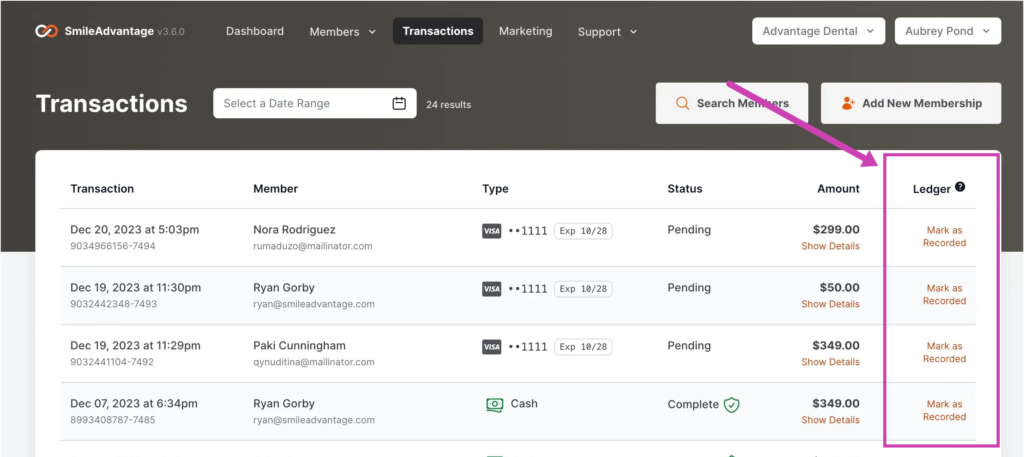
- Check for the Ledger column: There should be a new column on the right side called “Ledger.” If you don’t see it, contact Smile Advantage support for activation (it’s free).
- Identify transactions to record: You can filter transactions by week or any other criteria you prefer.
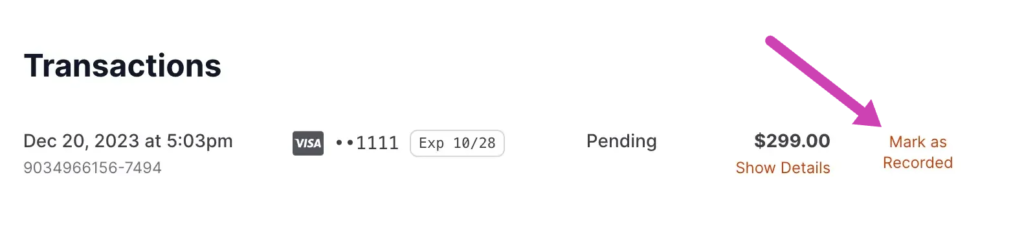
- Mark transactions as recorded: Look for transactions with “Mark as Recorded” next to them. This indicates a payment received through Smile Advantage that needs to be recorded in your practice management software.
- Click “Mark as Recorded”: Clicking this button confirms that you have recorded the transaction in your practice management software. It acts as a reminder that the payment has been processed.
Tips:
- It’s recommended to record transactions at the end of each week, not the month, to ensure everything is up-to-date.
- Clicking on a patient’s name allows you to see the specific date the transaction was recorded in your practice management software.
Overall, Ledger Assist helps you:
- Track payments received through Smile Advantage.
- Ensure those payments are recorded accurately in your practice management software.
- Maintain consistency between your Smile Advantage transactions and your accounting records.