
Purpose
This guide helps offices that were migrated from Rectangle Health to Smile Advantage Payments (SAP ensure memberships renew successfully by identifying and resolving missing or expired credit cards.
Why Some Cards May Be Missing
This guide applies only to practices that were migrated from Rectangle Health to SAP.
During the migration:
- All patient profiles, memberships, renewal dates, and plan details were moved successfully.
- Some saved credit cards could not be transferred because of:
- Card network rules (Visa / Mastercard)
- Gateway-to-gateway limitations
- Encryption and security restrictions from Rectangle
Because of those restrictions, a portion of cards had to be re-collected—even though the memberships themselves remained intact.
This is not a system error—it’s a compliance and security limitation between processors.
To reduce disruption, Smile Advantage added:
- Automated detection of missing or expired cards
- Branded outreach to patients
- Secure self-service update links
When to Use This Guide
Use this anytime:
- A patient shows no card on file
- A card is expired or failed
- A renewal is approaching and payment may not process
How the System Helps Automatically
Smile Advantage already:
- Detects missing, expired, or failed cards
- Sends branded text and email messages
- Uses your practice name and contact details
- Lets patients update cards securely online
Staff should still review upcoming renewals and take action when needed.
Step-by-Step: Requesting an Updated Payment Method
1. Find Patients With Missing Cards
From the dashboard:
- Go to Active Memberships
- Click View Patients Coming Up for Renewal
- Look for patients marked as missing a card
Focus on the next 30 days.

2. Open the Patient Profile
- Click the patient’s name.
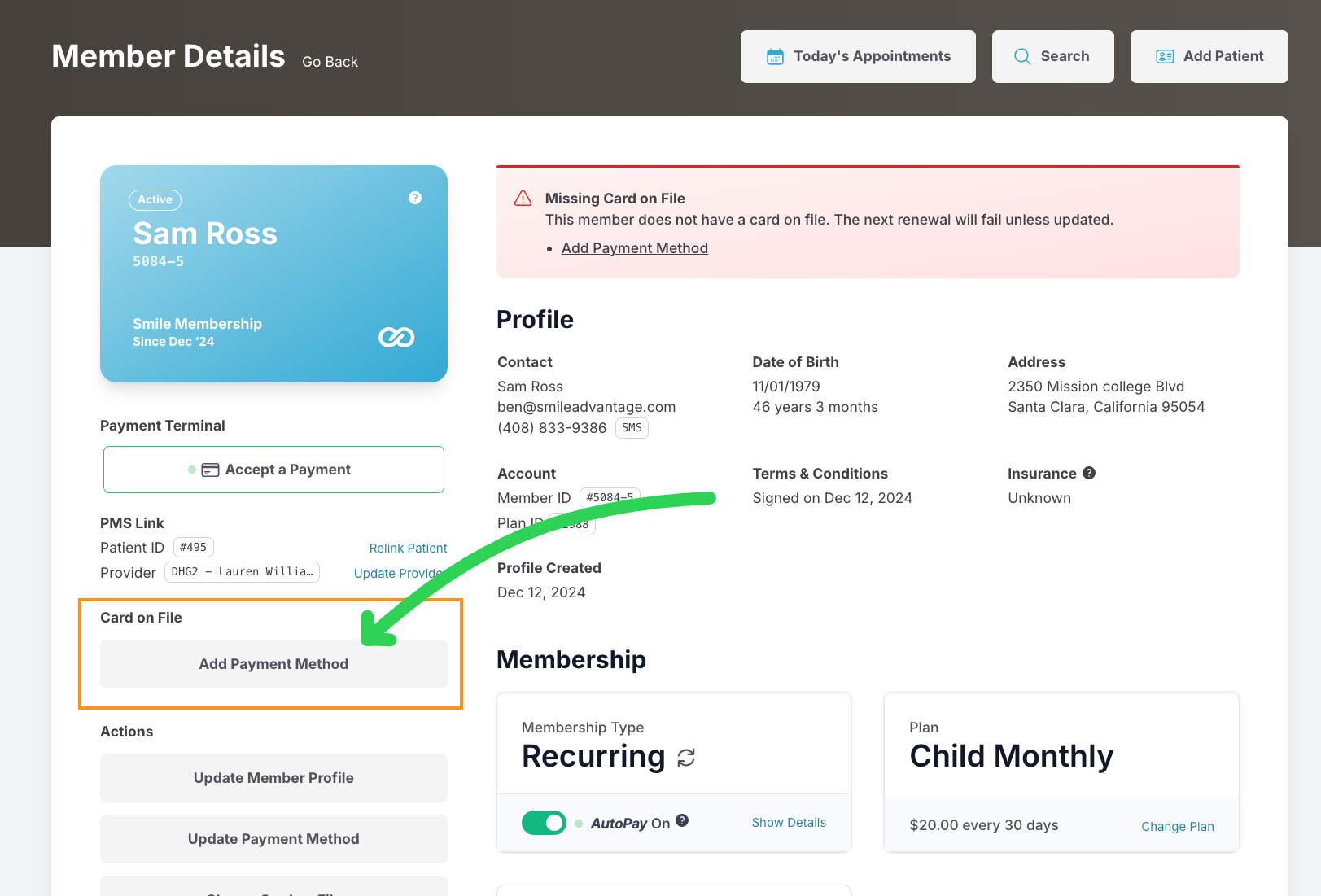
- Check the left-hand panel:
- Card on File = Missing → Action required
- Renewal date approaching → Prioritize
- Card on File = Missing → Action required
3. Choose How to Collect the Card
Option A — Add It in Office
If the patient is present:
- Click Add Payment Method
- Enter card details
- Save
Option B — Call the Patient
You can:
- Enter the card for them
or - Send them a secure update link
Option C — Send Secure Update Link (Recommended)
Click Add Payment Method, then:
- Select Send SMS to Update (Example below)

- Select Send Email to Update
Send both when available.
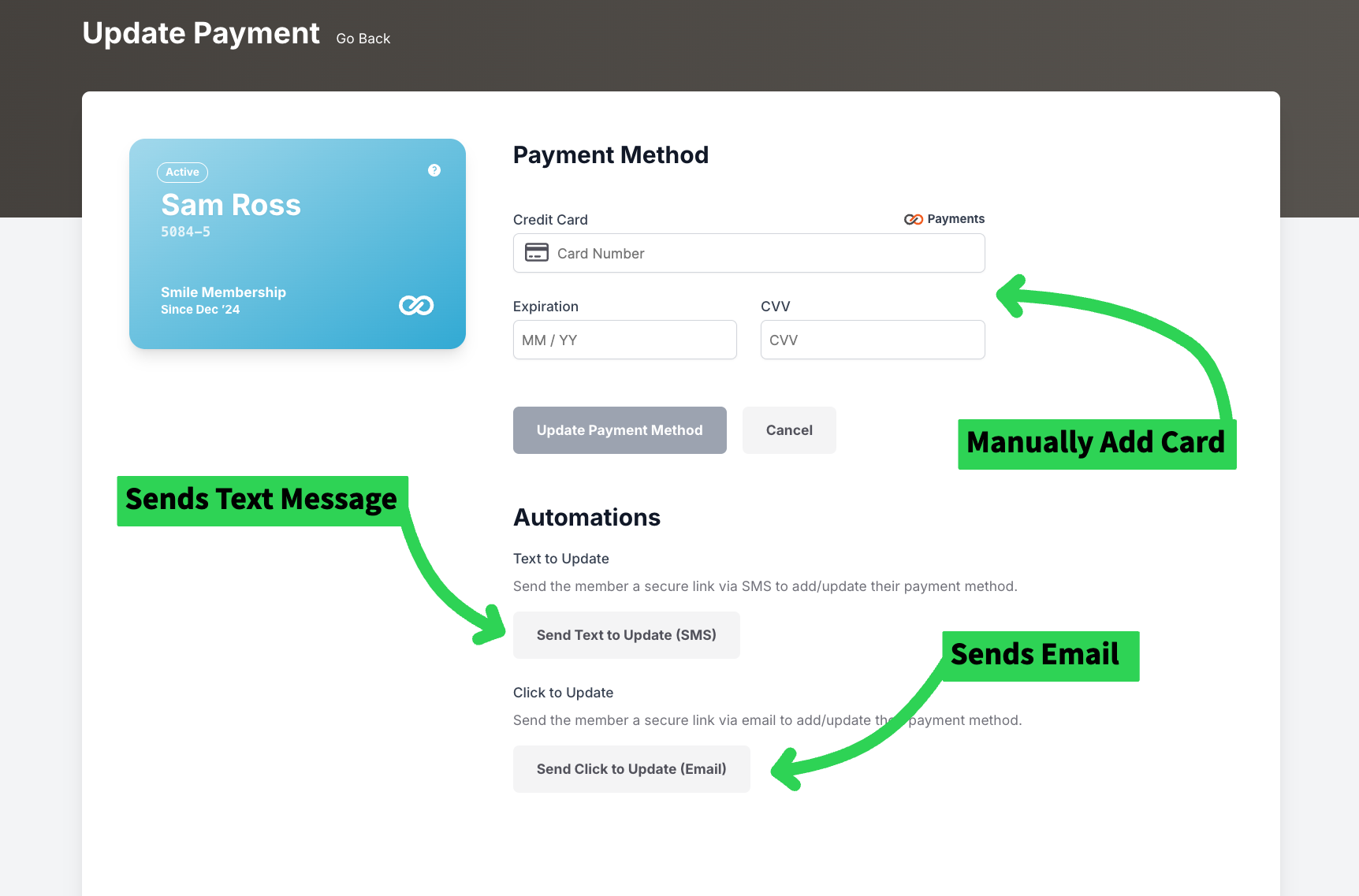
The patient will be prompted to fill out an Update Payment form like the one below:

4. Confirm the Card Was Added
Once updated:
- The card will appear on file
- The membership can renew normally
Ongoing Best Practices
- Check upcoming renewals weekly
- Look 30 days ahead
- Confirm cards during patient conversations
- Act quickly if one is missing
Important Clarification: Payment History vs Card on File
You may still see card details in past payment history. That does not mean there is an active card stored.
Only the Card on File status determines whether a renewal will process. If it’s missing, follow this guide.
Key Notes
- Smile Advantage never stores full card numbers.
- All Cards are encrypted and vaulted securely in our PCI-compliant gateway
- The system continuously monitors card status
- Patients are automatically prompted when action is needed
Need Assistance?
For any questions or support, reach out to us at [email protected].